
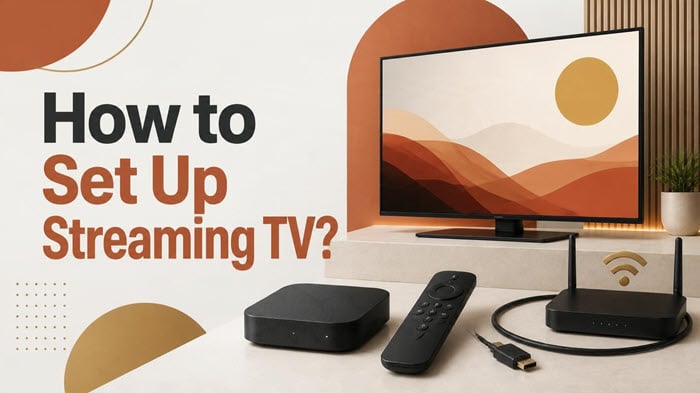
Setting up streaming TV is straightforward once you match the right device, internet connection, and apps to your television. A smart TV can stream through its built-in app store, while an older TV usually needs an external streaming player connected by HDMI. The full process is to connect the hardware, join your home network, install legitimate streaming apps, sign in, and adjust the picture and sound.
What do you need to set up streaming TV?
You need a compatible television or display, reliable internet access, and a way to run streaming apps. Gather your Wi-Fi name and password before starting. Keep your phone or computer nearby because some devices use a QR code, email, or activation page during setup.
| Item | Why it matters | Practical choice |
|---|---|---|
| Television or monitor | Displays the video and sound | Use a smart TV or any TV with a working HDMI port |
| Internet connection | Delivers live channels and on-demand video | Choose a stable home broadband plan with enough speed for every active stream |
| Streaming platform | Runs the apps | Use the TV’s built-in system or an external streaming player |
| Streaming apps | Provide movies, shows, sports, news, or live channels | Install services from the device’s official app store |
| Accounts | Save profiles, subscriptions, and preferences | Use an email address you can access and unique passwords |
| HDMI cable and power adapter | Connect and power some external players | Use the accessories specified for your device and video format |
Which streaming TV setup should you choose?
The best setup is the simplest option that supports your preferred apps and picture quality. Start with your smart TV if it remains responsive and receives software updates. Add an external player when the TV lacks an app, feels slow, or no longer supports the services you use.
| Setup | Best for | Main tradeoff |
|---|---|---|
| Built-in smart TV apps | A clean setup with one remote and no extra box | Older TVs may receive fewer app or system updates |
| External streaming player | Older TVs, faster navigation, or a preferred app platform | Uses an HDMI port and may add another remote |
| Game console | Homes that already use a supported console regularly | Usually consumes more power and can feel less convenient for everyday TV |
| Phone or computer casting | Occasional viewing, travel, or sharing a specific video | Depends on another device and may not support every service |
Check the app store on the actual platform before buying hardware. App availability, features, and regional support can differ even when two devices both advertise 4K playback. For paid or live TV services, also confirm that the service supports your country, household, and required number of simultaneous streams.
How fast should your internet connection be?
Streaming needs a stable connection more than a high advertised peak speed. A single service may recommend about 3 Mbps for 720p HD, 5 Mbps for 1080p Full HD, and 15 Mbps or more for 4K. Other services and live streams may need additional bandwidth, so treat these figures as starting points rather than universal guarantees.
| Video quality | Baseline per active stream | More comfortable household target |
|---|---|---|
| 720p HD | About 3 Mbps | 5 Mbps or more |
| 1080p Full HD | About 5 Mbps | 10 Mbps or more |
| 4K Ultra HD | About 15 Mbps | 25 Mbps or more |
Add the needs of simultaneous viewers and leave room for video calls, downloads, cloud backups, and smart devices. For example, two 4K streams can use far more bandwidth than one television. An unlimited or generous data allowance is also worth checking because high-quality video can consume substantial data.
Ethernet usually provides the most consistent connection when the television or player is close to the router. With Wi-Fi, 5 GHz or 6 GHz can deliver higher speeds at short range, while 2.4 GHz usually reaches farther but faces more congestion. The device, router, walls, and nearby networks all affect the result.
How do you set up streaming TV step by step?
Complete the setup in the following order so you can isolate problems as they appear. Menu names vary by television and platform, but the basic sequence is similar across current smart TVs and streaming players.
1. Decide what you want to watch
List the channels, sports, movies, local stations, and programmes that matter to your household. Then separate them into on-demand subscriptions, live TV services, free ad-supported apps, and over-the-air channels. This prevents you from paying for overlapping packages simply because they have different home-screen icons.
Use licensed services available in your region. An app appearing on a website does not prove that it has the right to distribute its channels. Official device app stores, transparent billing, clear support information, and understandable cancellation terms are useful starting checks.
2. Prepare the television and network
Place the router where it can reach the viewing area, or run an Ethernet cable if both devices support it. Write down the correct network name and password. Turn on the television, install pending system updates, and confirm that its date, time, and region are correct because account and app errors can occur when these settings are wrong.
3. Connect an external streaming player if needed
Connect the player to an available HDMI port, attach its supplied power cable, and use a wall adapter if the television’s USB port cannot provide enough power. Select the matching HDMI input with the TV remote. If you plan to watch 4K, HDR, or advanced surround sound, every device in the signal path must support the format, including the TV port, HDMI cable, receiver, and soundbar.
Choose the automatic display option during the first setup unless you have a reason to set the resolution manually. Automatic detection helps the player select a compatible resolution, refresh rate, and high dynamic range mode.
4. Pair the remote and join the network
Insert fresh batteries or charge the remote, then follow the pairing prompt. Select your language and region, connect to Wi-Fi or Ethernet, and allow the device to download its system update. Some platforms let you scan a QR code with a phone, while others allow a complete setup with the remote.
Connect only to a network you recognise. Avoid completing account setup over an open public Wi-Fi network. If your home network has separate names for different Wi-Fi bands, begin with the faster nearby band and switch only if its signal proves unreliable.
5. Install apps and sign in safely
Open the official app store, search for each service, and verify the app name and developer before installing it. Sign in by entering your account details on the TV or by using the service’s displayed activation code on your phone or computer. Never enter an activation code at a web address supplied by an unexpected message or pop-up.
Use a unique password for each important account, turn on two-step verification when available, and review where each subscription is billed. Paying through the service, device platform, or another provider can create different cancellation steps.
6. Configure profiles, privacy, and parental controls
Create separate profiles when household members want different recommendations, watch histories, or maturity settings. Add a purchase PIN if the platform supports one. Review voice assistant, viewing-data, advertising, and personalisation settings instead of accepting every optional feature automatically.
Parental controls work best when you configure both the streaming platform and individual services. One PIN may restrict purchases on the device without limiting mature content inside an app.
7. Adjust picture, sound, captions, and accessibility
Start with the television’s Cinema, Movie, Filmmaker, or Standard picture mode and disable an overly vivid store-demo mode. Keep the streaming player on a compatible automatic resolution. If colours look washed out or the screen goes blank when HDR starts, check the HDMI port settings and the capabilities of every connected device.
Set audio output to the TV speakers, soundbar, receiver, or headphones you actually use. Enable captions, audio descriptions, dialogue enhancement, or a screen reader where helpful. These controls may exist at both the device and app levels.
8. Run a complete test
Play an on-demand programme for several minutes, switch to a live stream if you use one, test volume and power controls, and confirm that captions remain synchronised. Test from the normal seating position rather than beside the router. A successful speed test does not rule out weak Wi-Fi, temporary congestion, or an app-specific problem.
How can you add local and live channels?
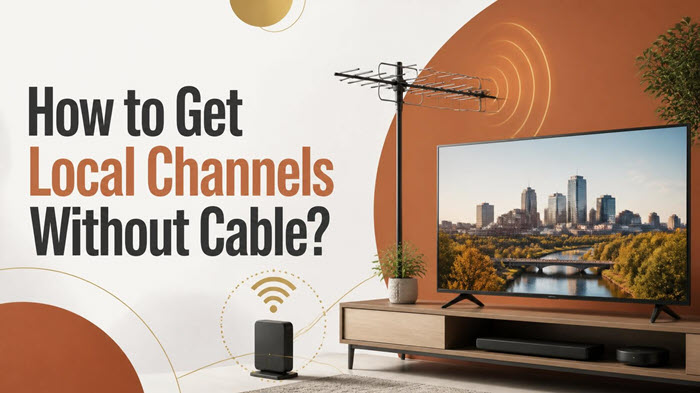
Local and live television can come from a live TV streaming subscription, individual network apps, free ad-supported services, or an over-the-air antenna. Availability depends on your region and may vary by service. Confirm the exact local channel line-up before subscribing because a national brand name does not guarantee the same affiliates in every area.
An antenna can complement streaming by receiving available local broadcasts without using internet bandwidth. Connect it to the TV’s antenna input, position it for reception, and run a channel scan from the television settings. The number and reliability of channels depend on distance, terrain, buildings, antenna placement, and local transmitters.
How do you organize streaming TV without overspending?
Begin with one or two services that cover your most-watched programmes. Add a service only when you know what it contributes, and cancel or pause subscriptions you are not using. Check whether a free trial converts automatically, note its renewal date, and avoid subscribing to the same service through multiple billing platforms.
- Pin your most-used apps to the beginning of the home screen.
- Remove or hide apps you do not use.
- Keep a simple list of services, prices, billing sources, and renewal dates.
- Use a universal search or watchlist when the platform supports it.
- Review subscriptions every few months instead of treating them as permanent.
What should you do when streaming TV does not work?
Troubleshoot one layer at a time. First, identify whether the problem affects one programme, one app, the entire streaming device, or every device on the network. That distinction keeps you from resetting equipment that is working normally.
| Problem | Likely cause | What to try |
|---|---|---|
| No picture | Wrong input, insufficient power, or an HDMI connection problem | Select the correct HDMI input, use the recommended power adapter, reseat the cable, and restart the player |
| Buffering or freezing | Weak Wi-Fi, congestion, or insufficient bandwidth | Test the speed on the streaming device, move closer to the router, use Ethernet, pause heavy downloads, and restart the network equipment |
| Blurry video | Adaptive quality, plan limits, or incompatible hardware | Wait briefly, check the app’s quality setting, and confirm that the plan, title, device, cable, and HDMI port support the target resolution |
| No sound or wrong audio | Incorrect output or an unsupported sound format | Check mute and volume, select the correct output, restart connected audio equipment, and try a simpler audio format |
| Remote does not respond | Battery, pairing, or line-of-sight problem | Replace or charge the batteries, restart the player, and follow the platform’s remote-pairing instructions |
| App is missing or will not install | Regional restriction, incompatible device, or outdated software | Check the official app store, update the platform, confirm regional support, and use another supported device if necessary |
Restarting means fully powering down the affected device, not merely turning off the screen. Unplug the player or television for about 30 seconds, reconnect it, and test again. Avoid factory-resetting the device until simpler steps fail because a reset removes accounts, apps, and preferences.
Frequently asked questions
Do you need a smart TV to stream television?
No. Any television with a working HDMI port can usually use a compatible external streaming player. The television supplies the screen and speakers, while the external device runs the apps and connects to the internet.
Can you stream TV without a cable subscription?
Yes. On-demand services, live TV streaming services, free ad-supported apps, and an optional antenna can replace or supplement traditional cable. Channel availability and total cost depend on the services you choose.
How much internet speed do you need for streaming TV?
A stable connection of about 5 Mbps can be a baseline for one 1080p stream, while 4K commonly starts around 15 Mbps per stream. More speed and headroom help when several people stream or use the network at the same time.
Is Ethernet better than Wi-Fi for streaming?
Ethernet is usually the most consistent option because it avoids wireless interference and signal loss. Good Wi-Fi can still stream reliably when the device has a strong signal and the network has enough capacity.
Why does streaming TV look blurry at first?
Many apps begin at a lower resolution while measuring the connection, then improve the picture after a short time. Persistent blur can result from slow or unstable internet, a lower playback setting, plan limits, or hardware that does not support the requested format.
Start with the simplest reliable setup
Use the smart TV platform you already own if it supports your essential apps and still performs well. Choose an external streaming player when you need better app support, faster navigation, or a newer video format. Connect it to a stable network, install only the services you plan to use, and test the complete path from internet connection to picture and sound before adding extras.