
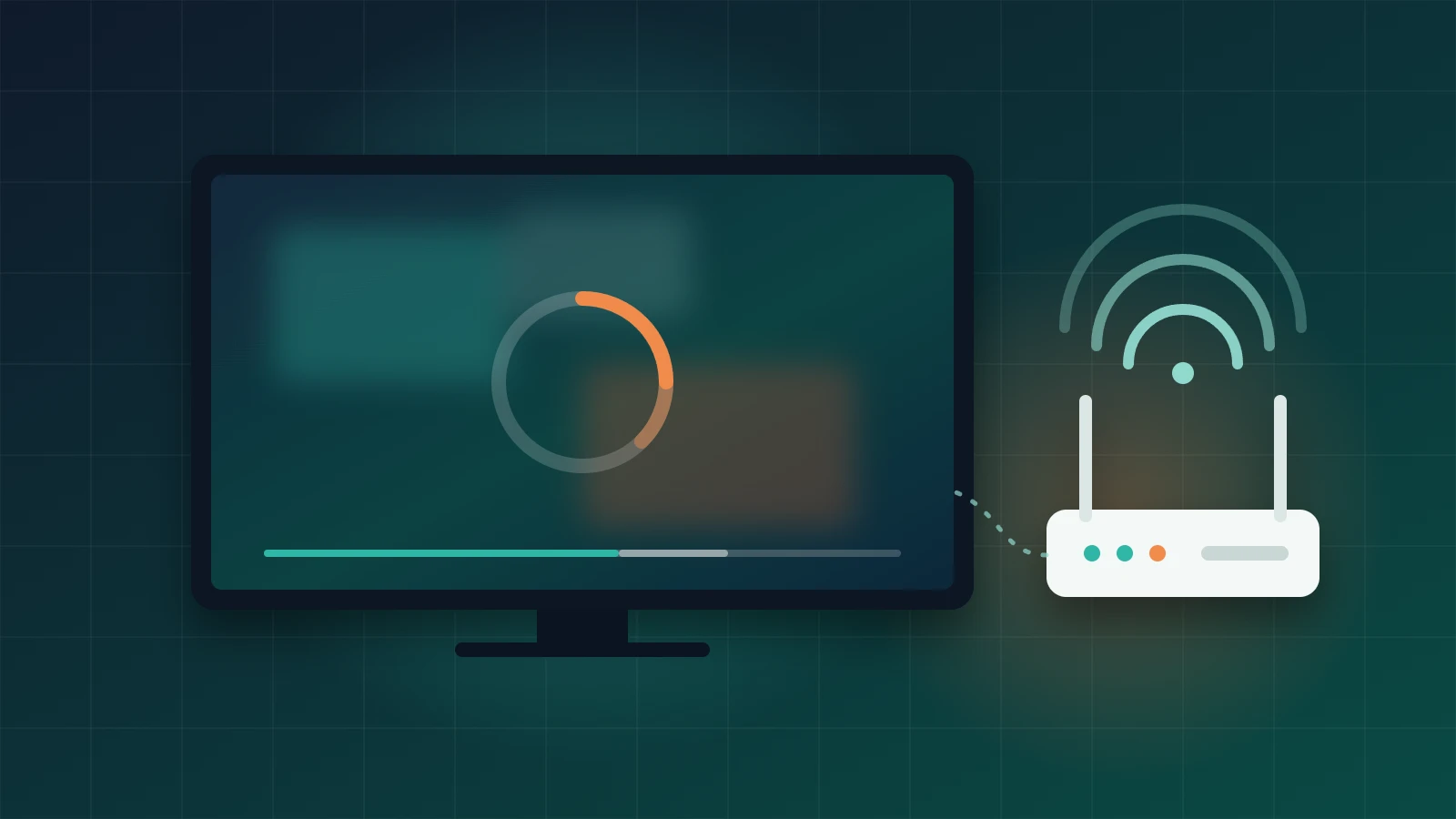
Buffering is the most common complaint we hear about IPTV, and it is also the most misdiagnosed. People often blame the provider when the real cause is a crowded Wi‑Fi channel, a device that has run out of storage, or a player app set up with the wrong decoder. Others spend an evening rebooting routers when the service itself is overloaded. This guide walks through the problem in the order that saves the most time: work out where the problem sits, then fix that part first.
Before you start: the steps below apply to legal, properly licensed IPTV services and to the player apps and devices you own. If a service cannot tell you who holds the rights to its channels, buffering is the least of the risks — see our guide to choosing an IPTV provider.
Work out where the problem is first
Five minutes of observation tells you more than an hour of random fixes. Answer three questions before you change any setting.
Does it happen on one channel or on every channel?
If only one or two channels stall while the rest play smoothly, the issue is almost certainly upstream — the provider’s source for that channel, or a busy server. Nothing you change at home will fix it reliably. If every channel buffers, keep reading: the cause is more likely to be on your side.
Does it happen on one device or on every device?
Try the same channel on a second device on the same network, such as a phone using the same account. If the phone plays smoothly and the TV does not, focus on the TV, its app and its connection. If both struggle, look at the home network or the service.
Is it constant, or only at certain times?
Buffering that appears mainly in the evening or during big live events points to congestion — either on the provider’s servers or on your internet provider’s network. Buffering at all hours points to a weak connection, an under-powered device or a misconfigured app.
Check your connection the right way
Test speed on the streaming device itself
A speed test on your laptop next to the router says little about a TV stick behind a cabinet two rooms away. Use a speed-test app or browser on the streaming device, at the time you normally watch, and run it two or three times. Look at consistency as well as the headline number: a connection that swings between fast and very slow will buffer even if its average looks fine.
Compare the result with what the stream needs
Exact requirements vary by provider and codec, but the figures below are a reasonable starting point for a single stream. Leave headroom for everyone else using the connection at the same time.
| Picture quality | Rough sustained speed for one stream | What to watch for |
|---|---|---|
| SD (standard definition) | 3–5 Mbps | Rarely a problem unless the connection drops out |
| HD (720p / 1080p) | 6–10 Mbps | Sports at 50/60 fps need the higher end |
| 4K / UHD | 20–25 Mbps or more | Needs a stable connection, not just a fast peak |
Fix the home network
Use a wired connection where you can
An Ethernet cable removes the biggest variable in most homes. Many Smart TVs and Android TV boxes have an Ethernet port; Fire TV Stick models can use an official or compatible Ethernet adapter. If a cable is not practical, a powerline adapter or a mesh Wi‑Fi node near the TV is the next best option.
Improve the Wi‑Fi link
- Connect to the 5 GHz band if your router offers it and the device is within a room or two; it is usually faster and less crowded than 2.4 GHz.
- Keep the router in the open, off the floor and away from thick walls, mirrors and large appliances.
- Move a TV stick out from behind the screen with an HDMI extender — the TV panel itself can weaken the signal.
- Pause large downloads, cloud backups and game updates while you watch.
Restart in the right order
When things have been running for weeks, a clean restart often helps. Turn off the streaming device, restart the router and wait until it is fully back online, then turn the device on again. Restarting the device first and the router second can leave the device holding a stale connection.
Fix the device and the player app
Clear the cache and free up storage
Streaming sticks with limited storage slow down noticeably when they are nearly full. Uninstall apps you no longer use and clear the cache of the IPTV player from the device’s app settings. Clearing data rather than cache will remove your saved playlist, so make a note of your login details first.
Update the player and the device
Player updates frequently fix playback bugs and add support for newer stream formats. Check for system updates on the TV or stick as well; outdated firmware can cause decoder problems that look exactly like buffering.
Adjust buffer and decoder settings
Most IPTV players include playback settings that are worth one careful change at a time:
- Buffer size: a slightly larger buffer can smooth out short dips in speed, at the cost of a longer wait when you change channel.
- Decoder: switch between hardware and software decoding. Hardware decoding is usually smoother on TV devices, but some streams play better with the alternative.
- Stream format: if the player lets you choose between HLS and MPEG-TS output, test both on the channels that struggle.
If you are not sure how your player is configured, our guide to setting up an IPTV player explains the main options.
When the provider is the problem
If you have ruled out your network and device, the service may simply not have enough capacity. Signs include buffering on many channels at once during busy periods, streams that fail on several devices and networks, and frequent outages announced (or not announced) by the provider.
- Note the channel, time and device for a few incidents so you can describe the pattern.
- Contact the provider’s support with those details and ask whether there is a known issue or an alternative server.
- Check whether your internet provider reports problems in your area.
- If the pattern continues, use the trial or refund window to switch rather than paying for another month.
Some internet providers manage traffic at busy times. If you suspect this, ask your internet provider directly about traffic management on your plan before changing anything else.
Quick buffering checklist
| Symptom | Most likely cause | First thing to try |
|---|---|---|
| One channel buffers, others are fine | Provider source or server | Report it to support and try again later |
| Every channel buffers on one device | Device, app or its Wi‑Fi link | Wired connection, clear cache, update the app |
| Every channel buffers on every device | Home network or service capacity | Speed test on the device, restart router, contact support |
| Only in the evening or during big events | Congestion | Compare at off-peak times and log incidents |
| Picture freezes but audio continues | Decoder issue | Switch hardware/software decoder in the player |
Keep expectations realistic
No service is perfectly stable during the biggest live events, and even well-run platforms have the occasional outage. What you should expect is a provider that explains problems, fixes them in a reasonable time and offers a fair way to leave if it cannot. If you are still choosing a service, our testing methodology explains how we check stability before we recommend anything.