
An IPTV player is an app that plays streams — it does not come with any channels of its own. To watch anything, you add the access details supplied by your IPTV service, usually as an M3U playlist link or an Xtream Codes login. Once you understand those two formats and where the programme guide fits in, setting up almost any player on almost any device follows the same pattern.
Use details from a service you are entitled to use. Player apps are legitimate software, but the content you load into them must come from a properly licensed provider. Never paste a playlist you found online, and never share your own login.
What you need before you start
- Your subscription details from the provider — an M3U URL, an Xtream Codes login, or both.
- The programme guide (EPG) link, if your provider supplies it separately.
- A compatible player app from your device’s official app store where possible.
- A stable internet connection; a wired connection is best for TVs and streaming boxes.
M3U playlist or Xtream Codes: which should you use?
Many providers offer both. They lead to the same channels but behave differently inside the player.
M3U playlist URL
An M3U playlist is a single web address that returns a list of channels and their stream links. It works in the widest range of players and is easy to paste in. The drawbacks are that a large playlist can be slow to load, and video-on-demand libraries may not be organised as neatly. Because the URL usually contains your username and password, treat it like a password.
Xtream Codes login
An Xtream Codes login uses three fields: a server address, a username and a password. Players that support it load live channels, films and series as separate sections and often refresh faster than with a long M3U file. Most providers that support it will recommend it as the better option where the player allows.
EPG (XMLTV) link
The electronic programme guide is what shows you what is on now and next. With Xtream Codes, the guide is often loaded automatically. With an M3U playlist you may need to add a separate XMLTV address in the player’s EPG settings.
| M3U playlist | Xtream Codes | |
|---|---|---|
| What you enter | One URL | Server, username, password |
| Player support | Almost universal | Most modern players |
| Films and series | Mixed into one list | Usually separate sections |
| Programme guide | Often added separately | Usually automatic |
Setting up on common devices
The menus differ between apps, but the order of steps is nearly always: install the player, choose to add a playlist or login, enter your details, then add or refresh the EPG.
Fire TV Stick
- Search the Amazon Appstore for the player your provider recommends and install it.
- Open the app and choose the option to add a playlist or user.
- Select Xtream Codes if available and enter the server, username and password exactly as supplied — or paste the M3U URL.
- Wait for channels to load, then open the EPG settings and refresh the guide.
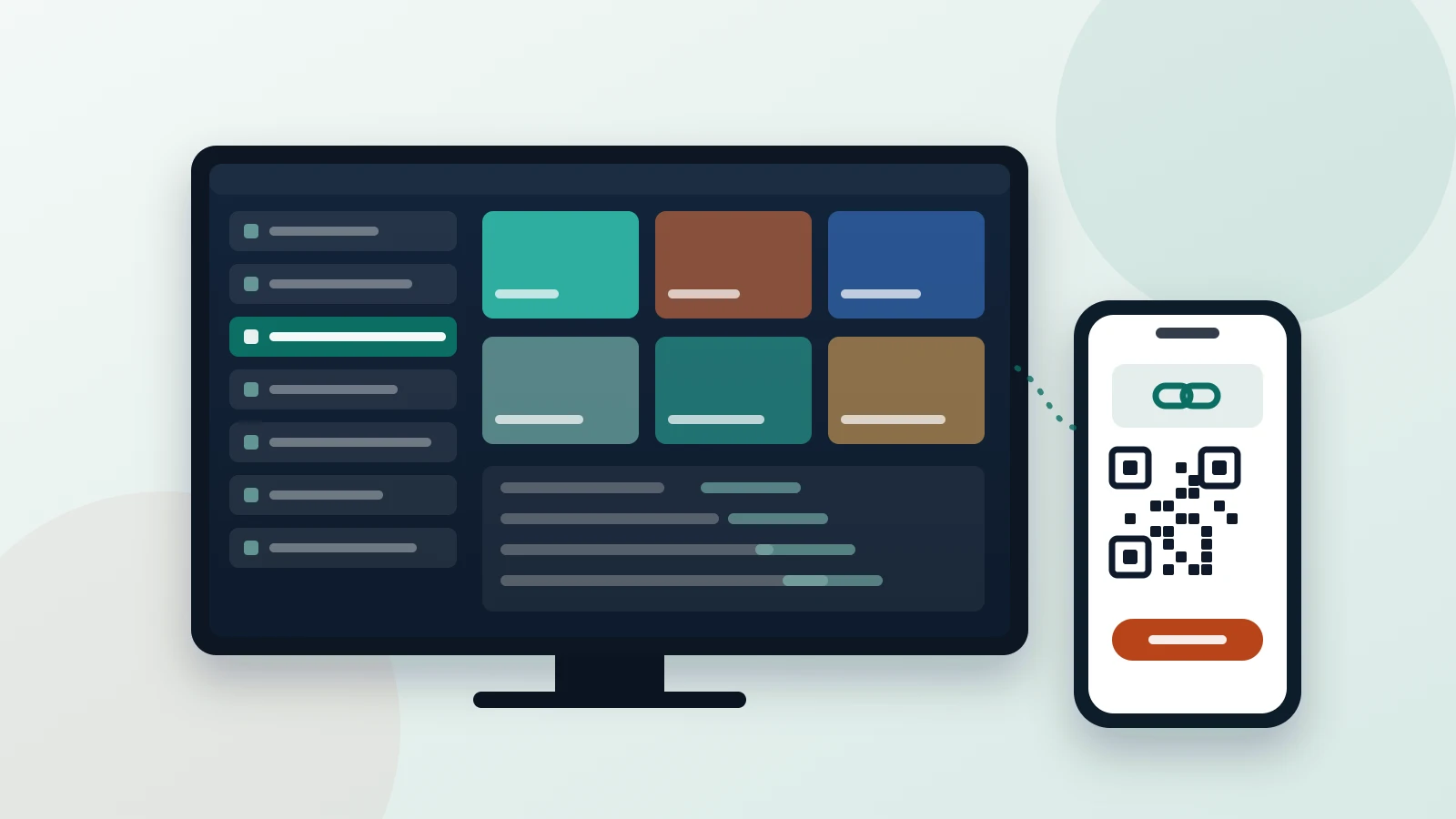
Typing long addresses with the Fire TV remote is error-prone. Several players offer a web page or QR code to enter details from your phone instead, which avoids typos.
Android TV and Google TV
Install the player from the Google Play Store on the TV. Setup mirrors the Fire TV steps. Android TV boxes often have an Ethernet port; use it if you can, because it makes channel switching and the first playlist load noticeably quicker.
Samsung and LG Smart TVs
Samsung (Tizen) and LG (webOS) TVs have their own app stores with a smaller choice of IPTV players. Some players ask you to activate the TV on the developer’s website using a device code shown on screen, and some charge a separate licence fee for the app. Check the player’s own website for its current terms before paying.
iPhone, iPad and Android phones
Mobile players work the same way and are useful for checking whether a problem is the TV or the service. Remember that most providers limit how many devices can stream at once — watching on your phone while the TV is playing may use up a second connection.
Adding the programme guide and fixing mismatches
If channels play but the guide is blank or shows the wrong programmes, work through these in order:
- Check that the EPG address has been entered in the correct field and refresh it manually.
- Confirm your device’s time zone and clock are correct — a wrong time zone shifts the whole guide.
- Allow time for a large guide to download; the first refresh can take several minutes.
- If only some channels are wrong, ask your provider whether their guide IDs have changed.
Common setup errors and what they mean
| Message or symptom | Likely cause | What to do |
|---|---|---|
| Authorisation failed / invalid login | Typo, expired subscription or wrong server address | Re-enter details carefully; confirm the account is active |
| Playlist loads with no channels | Incorrect URL or output format | Copy the URL again; try the other output format if offered |
| Too many connections | Device limit reached | Close the stream on other devices or ask about your plan’s limit |
| Channels load but will not play | Decoder or format issue | Switch decoder or stream format in playback settings |
| Guide shows nothing | EPG not added or not refreshed | Add the XMLTV link and refresh manually |
If a stream starts but keeps stalling, see our step-by-step guide to fixing IPTV buffering.
Keep your account details safe
- Treat M3U links and Xtream Codes logins like passwords — anyone with them can use your connections.
- Do not post screenshots of your settings screen in forums or chats.
- Remove your details from any device you sell, give away or stop using.
- Change your password through the provider if you think the details have leaked.
Once the player is set up, the quality you get still depends on the service behind it. Our checklist for choosing an IPTV provider covers what to look for before you subscribe.